Alert Thresholds
An alert threshold is a definition of a condition that should not happen, and if it does happen then it must be corrected. An alert is created to track and document the threshold violation. As long as the threshold condition is being met the alert will remain in a state of open. When the condition is no longer true then the Alert State will be closed. After an alert is closed, if the same threshold detects a violation on the same sensor or asset then a new alert will be created in an open state. If it is desired to have a notification when an asset or sensor hits a condition, but there is no resolution for that condition, an Event is a better choice than an alert. For example if a notification is needed when an asset enters a room, that is not an alert as there is no resolution. An Event is a notification of a condition without the persistence of an open alert that can only be closed when the condition is mitigated.
Defining a Threshold
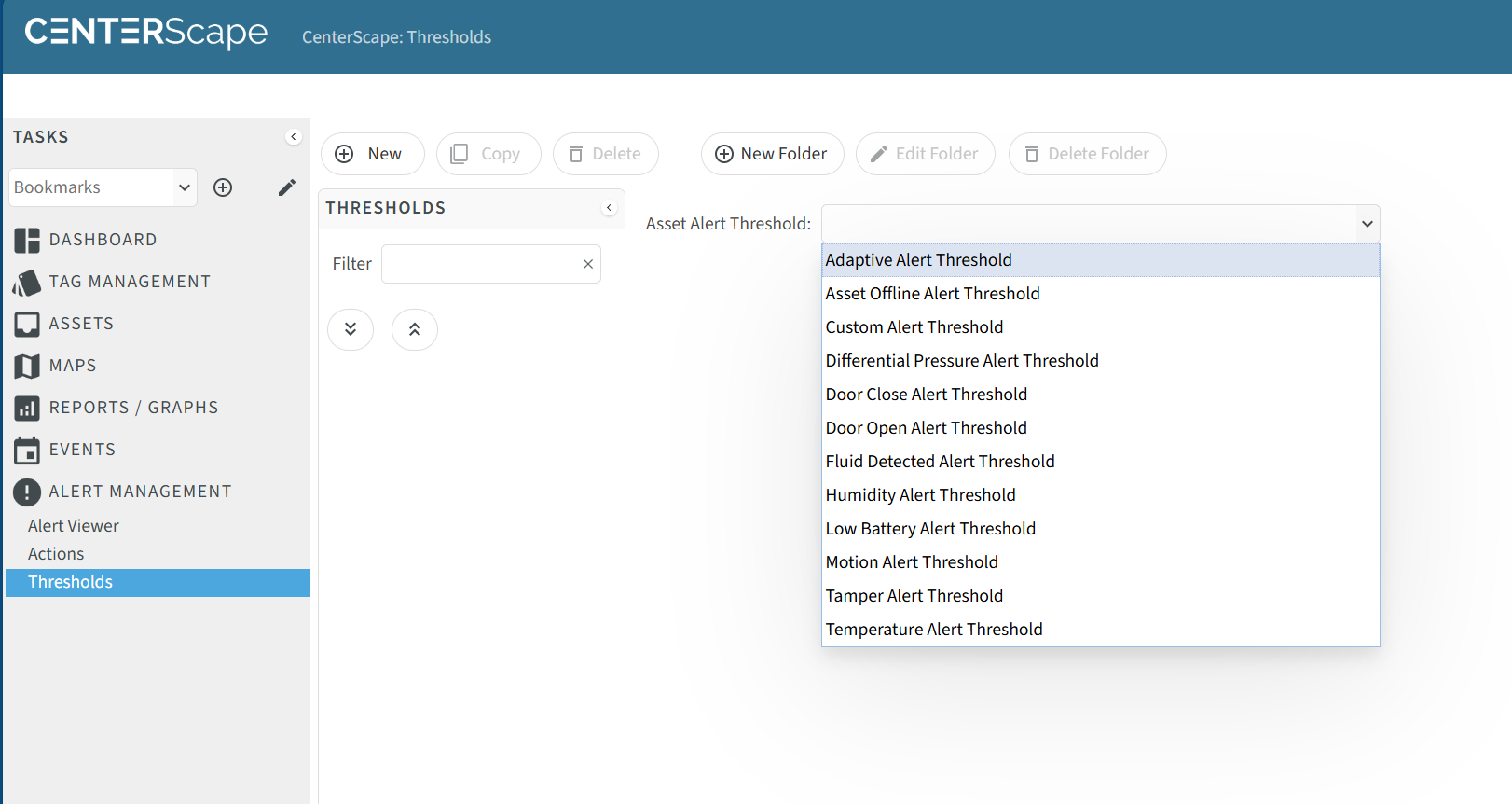
To define a threshold in the User Console go to ->Alert Management->Thresholds and click new. Then select a Asset Alert Threshold Type from the drop down list. The type of threshold selected will vary based on what the plan is for the threshold. A summary of each type can be found below.
Selecting an Alert Threshold
| Threshold Type | Purpose | Recommended Use Cases |
|---|---|---|
| Adaptive Alert Threshold | This threshold compares two attributes that change with each other in a formula | This is an adanced threshold typically used in conjuction with statistical packs to establish a sliding threshold. It is used with differential pressure and other sensors that need to establish a normal operating mode over time as opposed to a hard immutable limit. It is radically different than any other threshold type. |
| Asset Offline Threshold | This threshold can be used to Alert if an asset goes offline | This is generally used for sensors that are never supposed to go offline. |
| Custom Alert Threshold | This is a catch all threshold that is completely open. | The custom alert threshold is a threshold that has no parameters prefilled to assist in the configuration of the threshold. It can be used to configure a threshold with any functionality of other types of thresholds except Adaptive Alert Thresholds. Seasons CenterScape users will use this type for most thresholds they configure because they have the fexibilty to change any filter parameter. |
| Differential Pressure Alert Threshold | This threshold is used to create alarms based on a static value of Differential Pressure. | This threshold is of limied untility. Most alerts for differential pressure are based on Averaged Differential Pressure, which is more stable or use adaptive thresholds as "normal" differential pressure tends to be unique per sensor installation |
| Door Closed Alert Threshold | This is a threshold used when a door should be open and needs an alert generated when the door is closes. | The use of this threshold is uncommon and is typically used on fire doors that are normally open or in the case of a cabinet with a door sensor that is overheating and needs the door to remain open. |
| Door Open Alert Threshold | This alert threshold alerts when a door is open and closes it when it is closed. | This is the more common alert threshold for door alarms. |
| Fluid Destect Threshold | Alerts when Fluid Sensor Goes from dry to wet. | Used to alert when Fluid sensors detect a wet condition. This is a simple threshold used when fluid sensors are deployed. |
| Humidity Alert Threshold | Used to alert when relative Humidity is either high or low. | Usually two thresholds are needed if alerting on Humidity, one for when Humidity is too high and one for when it is too low. |
| Low Battery Alert Threshold | This threshold can be used to alert when a sensor or asset tag reports a low battery condition | In general this should be used with sensors and reports should be used to monitor asset tags. |
| Motion Alert Threshold | This threshold is used with some tags that include motion sensors on them. | Motion sensors are limited to the M175 Industrial tag and a limited amount of older tags. Motion in this context is not location change, but a vibration sensor populated in some tag types. |
| Tamper Alert Threshold | The Alert Threshold is used to alert when a tag detects a tamper condition. | Tags with tamper functions can indicate whether or no tamper has been triggered. This Alert threshold type is used to alert on that event. |
| Temperature Alert Threshold | This Alert type can be used to Alert on base Temeperature values. | This alert type is used to alert on direct Temeprature reported by Temperature sensors. Other calculated Temperature values need the Custom Alert Threshold |
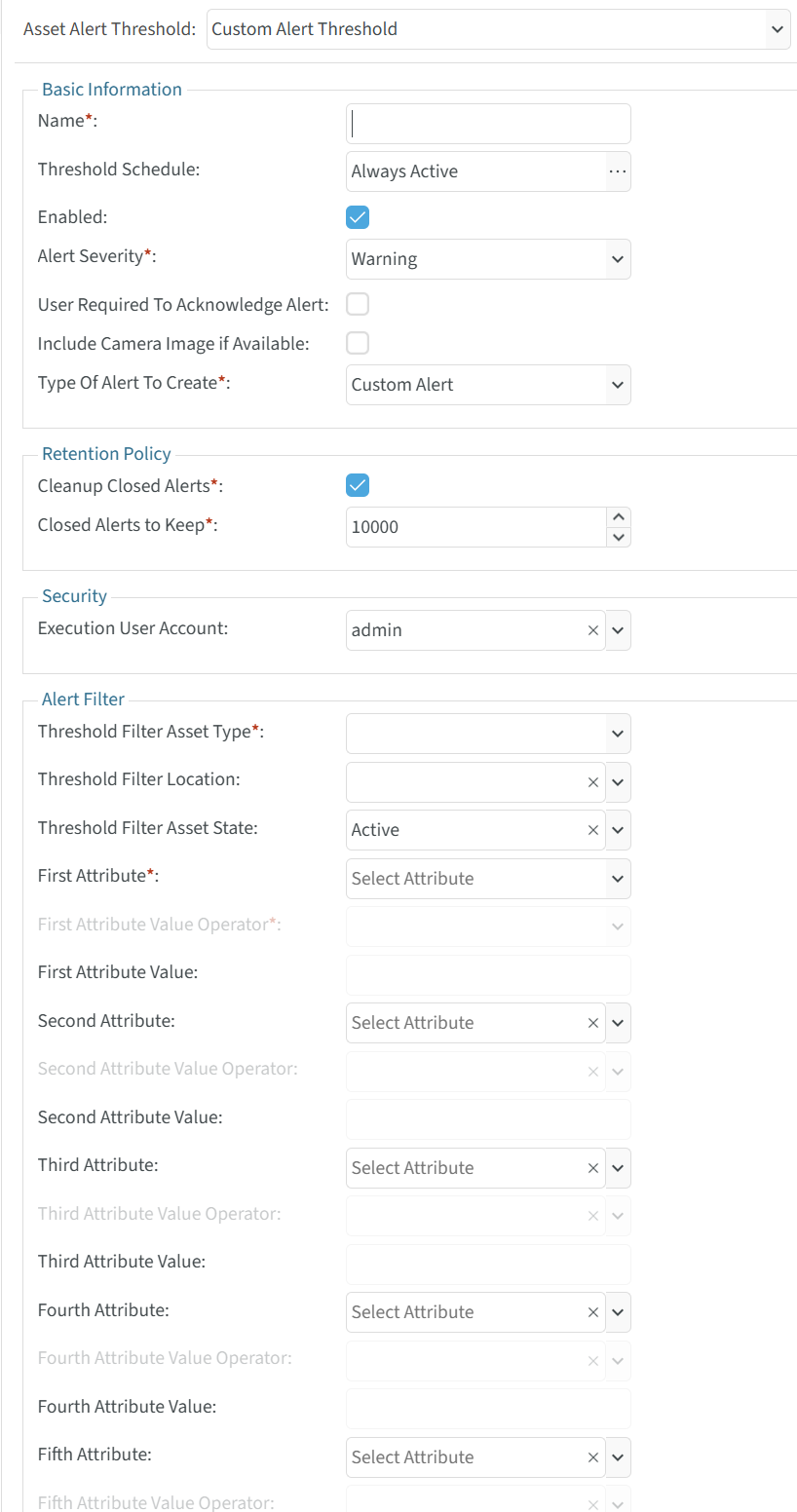
With the exception of adaptive alerts, all other alert threshold types are the same as the Custom Alert Threshold but with some field prefilled. In the below example a Custom Alert Threshold is selected where none of the filters are defined.
Common Attributes
The following attributes are common across all alerts and serve to control, describe and schedule the threshold and its generated alerts.
| Attribute | Purpose | Details and Recommendations |
|---|---|---|
| Name | This is the Unique Name of the Alert Threshold it is a required field. | The Name field needs to have a unique name in the system. It is recommended tha the word Threshold be used at the end of the name. For Example "High Intake Rack Temperature Threshold" would be a good name for a threshold that alerts on high intake temperature for cabinets. If a location is in the filter then adding the location as a prefix help keep the Thresholds organized. |
| Threshold Schedule | A Threshold Scheudle adds a schedule time component to the Threshold | A Threshold schdule may be used on something like a Door Threshold where Doors in the data center may not be opened during trading hours for a stock exchange, or perhaps only opened during normal business hours. The schedule is weekly. |
| Enabled | A threshold that is not enabled will not generate Alerts. | If a Threshold that is enabled and have active open alerts is disabled then the alerts will be closed immediately after the threshold is disabled. If it is reenabled it will generate new alerts. |
| Alert Severity | This attribute will be a part of the alert and communicated on both the CenterScape UI and via alert actions. | The Alert Severity selection is a progressive list of alert severities. Failure is the highest Alert Severity and Informational the lowest. |
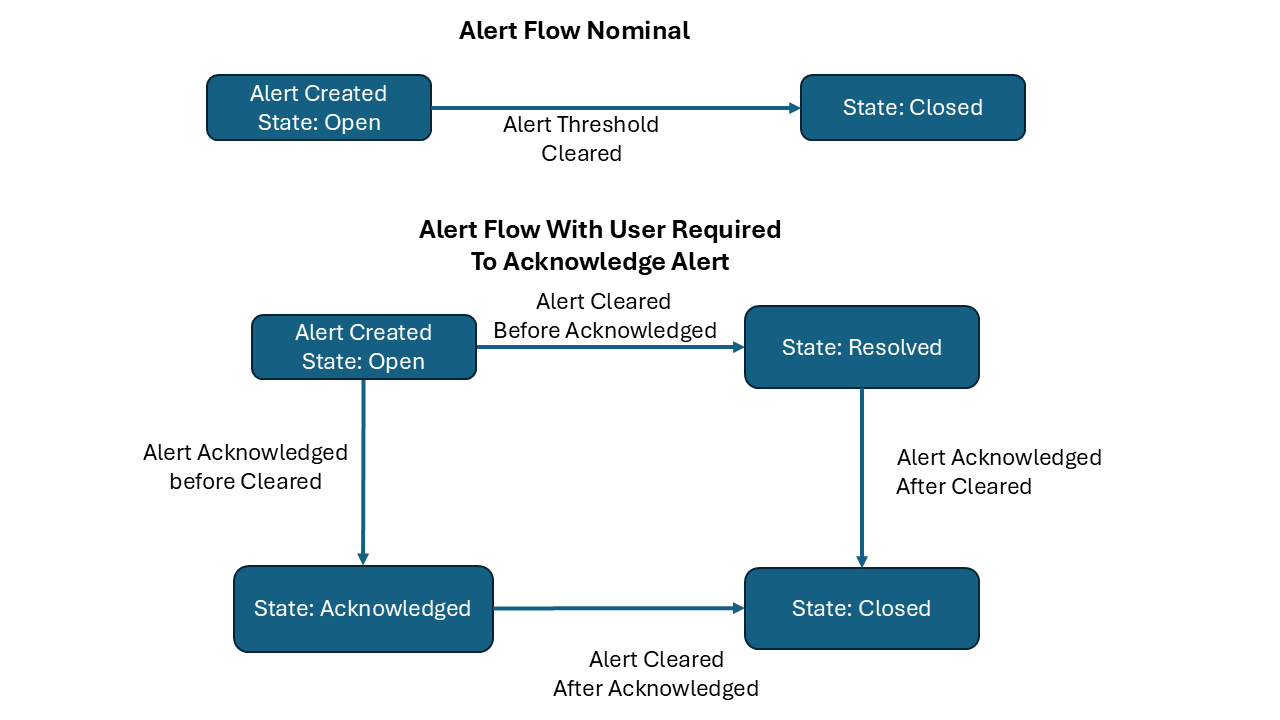
| User Required to Acknoledge Alert | If this attribute is enabled an alert will enter a resolved state instead of a closed state until a user logs into CenterScape and acknowleges the alert. | The user that acknoledges the alert is saved to the alert object providing a record tha the alert was handled. This function shoul donly be used on infrequent alerts if desired and is optional. Alert actions will not execute upon acknowledgement of an alert. An alert that remains in violation can be acknowleged before the alert is resolved. Here |
| Include Camera Image if Available | This is an option for users of CenterScape Edge software | Including a camera image does nothing unless using the CenterScape Edge product. |
| Type of Aert to Create | For all alert thresholds other than adaptive alerts or custom alerts this is set to the type selected. | When using a custom or an adaptive alert some integrations require an override on the Alert Type. The alert viewer can also filter based on type so if a custom alert for Average Temperature is needed, that alert can be typed as a Temperature Alert instead of a Custom Alert. In most cases this attribute does not need to be changed. |
| Cleanup Closed Alerts | This setting will enable the deletion of closed alerts once they reach a certain count. | Having many thousands of closed alerts can effect performance on CenterScape. The alerts are still obejcts in the system and occupy indexes and stroage in the database that is also used to process new information. Having Cleanup Closed Alerts enabled will limit the amount of closed alerts in the system to maintain performance. |
| Closed Alerts to Keep | This is the number of closed alerts generated by the threshold to retain. | The number of closed alerts to retain can be 0 to 50000. The defualt of 10000 is usually fine for most deployments. |
| Execution Account | Depricated Attribute | This attribute is not currently used by CenterScape |
Standard Filter Attributes
Filter attributes narrow the selection of assets or sensors that a threshold will target and define the conditions that qualifying asset or sensors will need to meet to generate an Alert. Thresholds can be configured to be broad or narrow in scope. They can monitor one sensor or thousands of sensors. They can be scoped by location, by naming convention, by the type of sensor or asset, by custom attribute that has been added to CenterScape, or any combination of these parameters.
Threshold Filter Asset Type - This is a required field that scopes which types of assets that a threshold targets. For example when creating a door open threshold the threshold should be targeted to the door sensor.
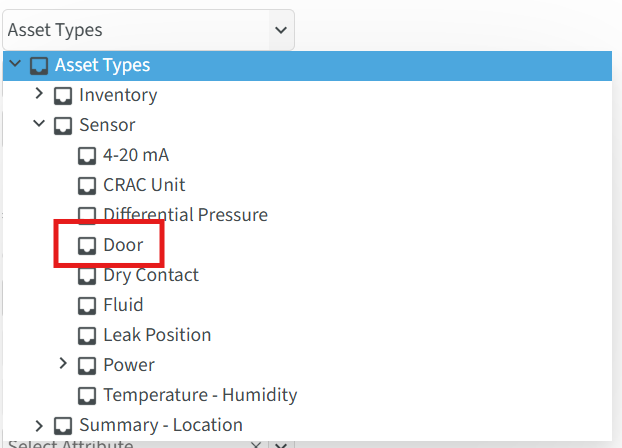
Before targeting an asset type make sure that type has the attribute that the threshold is expected to alert on.
Note: Threshold will only operate on specific attributes. If a type does not have the attribute the threshold will not be able to detect its change.
Threshold Filter Location - Threshold filter location is an optional filter that limits the scope of a threshold by Assigned Location. This is commonly used when CenterScape is deployed over many buildings or a large data center where each location either has different staff that need to be notified of the Alert or the threshold parameters cannot be uniform across all locations.
Threshold Filter State - This parameter is by default set to Active. It is the "State" of the asset which can be Active or Retired. There are limited use cases to alert on the condition of a retired sensor or asset, but if that case is needed then setting the attribute to Retired will limit the Threshold to only work on retired assets (an example might be that an asset has been retired and should never be seen again) or "Both" which will taget both retired and active assets.
Targeting Specific Attributes
CenterScape Thresholds support targeting up to five attributes in an AND structure. The logic is Attribute 1 meets this condition AND attribute 2 meets this condition AND attribute 3 meets this condition and so forth. Only the first attribute is required, but additional attributes can narrow the scope and conditions of what constitutes and alarm. For a door threshold simply choosing Door = Open will alert whenever any door sensor detected an open condition.
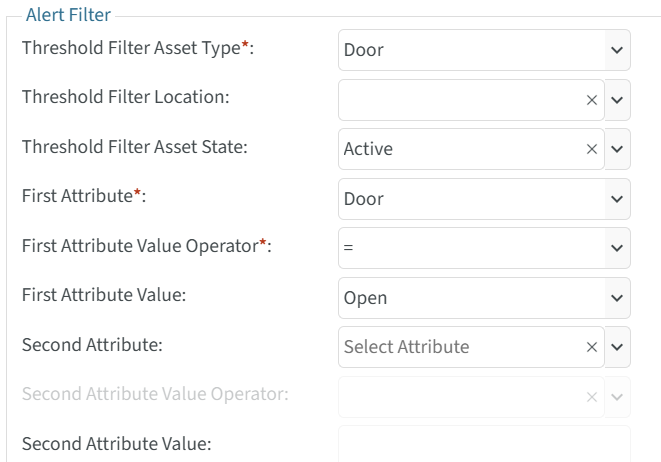
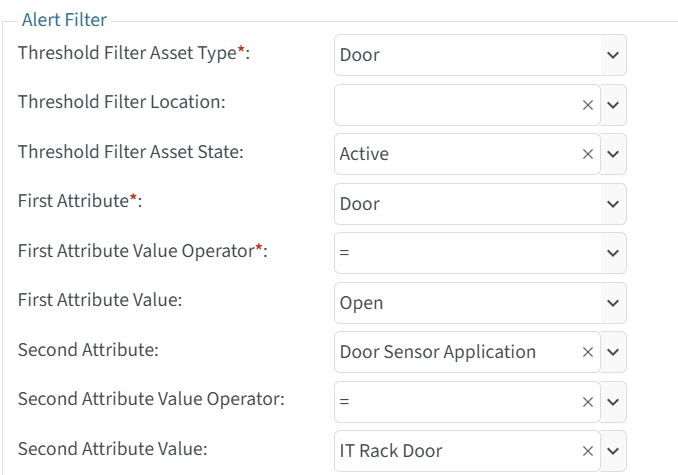
However, if a threshold should only apply to door sensors that are monitoring racks then an additional attribute Door Sensor Application should be used which will only target door sensors whose Door Sensor Application is IT Rack Door. This will allow containment doors and doors to IT Closets to not be part of the threshold. If there is another application for the door sensor the Schema can be extended to add more options for values in Door Sensor Application and then thresholds can be targeted on the new selections available.
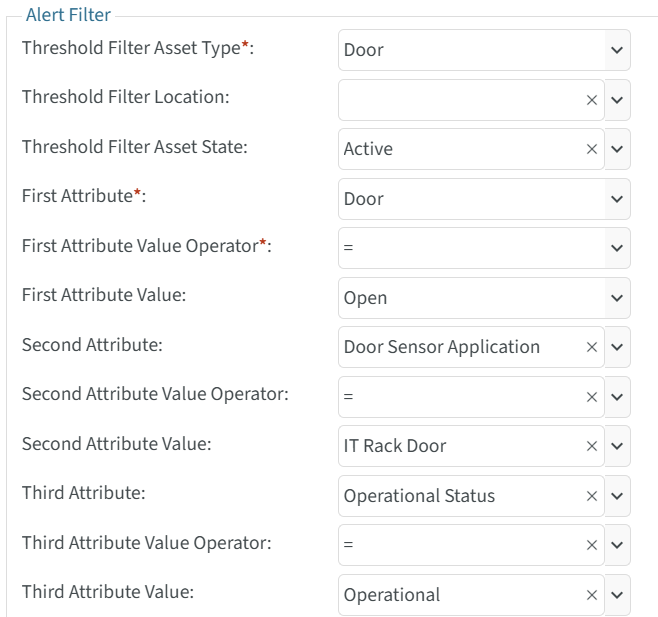
Another highly recommended filter attribute especially on sensors is the Operational Status attribute. The operational status attribute is a user driven attribute that indicates the "operational state" of the asset or sensor. In larger CenterScape installs there are phased deployments of new areas that occur after CenterScape is already in production and monitoring sensors in other production environments. Sensors can be installed but perhaps there is no equipment in the racks yet or the Datacenter nearing construction completion and testing its cooling systems. When this happens the sensors are installed but not operational like other sensors that are actively monitoring environments that have been up and running prior to the new build out. Having a threshold alert on sensors that are not yet monitoring a production environment could be counterproductive and flood erroneous alerts to people responsible for the production systems. When a sensor is added to CenterScape its default operational status is "Installed". If using Operational Status in a threshold, the sensor can be installed and tested without generating alarms. After testing and when the system is in production setting that status to "Operational" adds the sensor to threshold monitoring. Testing thresholds can also be created that target "Installed" sensors and asset during the testing phase to verify alerting with the new set of equipment. Using Operation Status in this fashion greatly simplifies administration of large numbers of sensors.
The flexibility of the thresholding engine can also be used to target a single sensor by using a unique identifier such as Name or Asset tag as a filter string match.
First, Second, Third, Forth, and Fifth Attribute - The first attribute is required and all additional attributes are optional. The list of attributes in CenterScape is large so typing in the field can narrow the selection to string matches.
First, Second, Third, Forth, and Fifth Attribute Value Operator - This is the comparison parameter of the attribute. Comparison options will be shown in the context of the Attribute Selected in the filter. Operators that do not apply to the data type of the attribute selected will be omitted from selection.
- = - This is a complete string or numerical value match value. If the attribute is an Entity Type Reference (Assigned Location, Detected Location, Tree Selection) then the value must be exactly the same.
- != - This will match a string or numerical value if there is not an exact match.
- > - The operator match a numerical value that is greater than the comparison value.
- < - This will match a numerical value that is less than the comparison value.
- >= - The operator will match a numerical value that is greater than or equal than the comparison value.
- <= - This will match a numerical value that is less than or equal than the comparison value.
- Has Value - This will match if an attribute has any string, numerical value, or Entity Type Reference value.
- Does Not Have Value - This will match if any type of attribute is null. Use caution and scope properly when using this operator as it will match any sensor or asset if it does not have a value for the attribute. For example the logic "Door Does Not Have Value" will match every Temperature sensor if the door type is not targeted. In a string context a blank string will not trigger an alert as it is a value. Use Blank or No Value if the intention is to match a blank string.
- Contains - The operator will match a string that contains the comparison value.
- Does Not Contain - This will match a string that does not contain the comparison value.
- Starts With - This will match a string that contains the comparison value at the beginning of the string.
- Blank or No Value - For stings only, this will match an attribute that is blank or null.
- In - This applies to Entity Type References Only such as Assigned or Detected Location. This will match if the attribute if the value matched exactly the position in the Entity Type Tree or if the value supplied is any leaf node in the tree below the comparison value.
Threshold Delay - This is the amount of seconds that the Threshold matches before an alert is created and corresponding alert actions are executed. This delay only applies to the start of an alert. If the condition clears the alert will be closed immediately.
Alert Action Selection
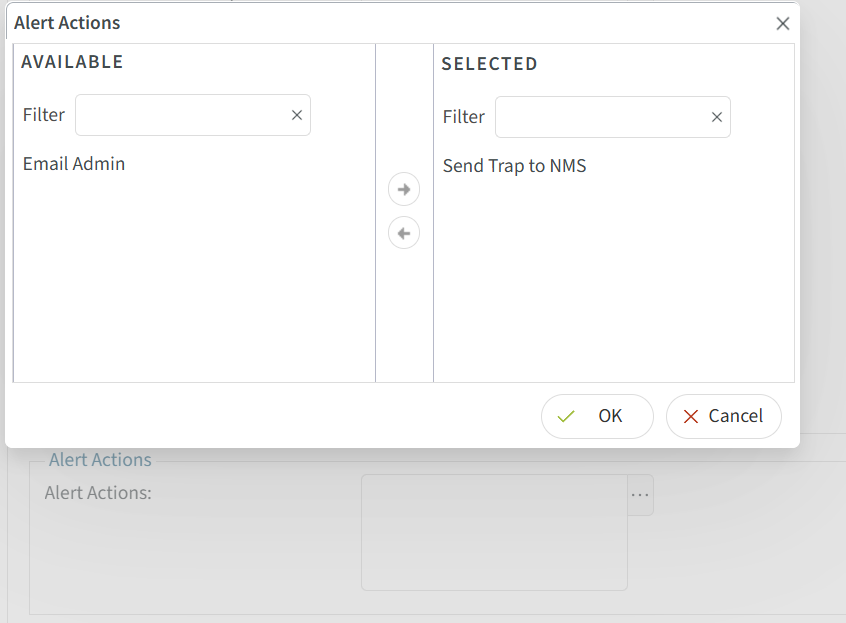
In the section for Alert Actions there is a button with "..." that is used to select Alert Actions to Execute with the threshold. This will bring up a dialog with available Alert Actions to select from. Move any alert actions that need to be executed from the available pane to the selected pane. If there are no Alert Actions to select from they need to be created and can be added to the Threshold later.
Alert Message Customization
The Alert Start Message and Alert Resolve Message are messages that are part of the Alert and supplied to Alert Actions as well as used in the CenterScape UI. The default message that is included when an alert type is selected can be customized and altered with other text and a series of Macros that will substitute current values of the Alert or current values of the Asset or Sensor that generated the violation and triggered the alert. The Macro button can assist in selecting the desired macros. For a custom alert a generic "A custom alert condition has been detected for the asset {$aAlertEntity}." is provided. The {$aAlertEntity} will substituted for the Name of the asset that triggered the alert when the Alert Message is published. For the Door example the text of the Alert Start Message and Alert Resolve Message is altered to better describe the alert from the basic text templated by the custom threshold type.
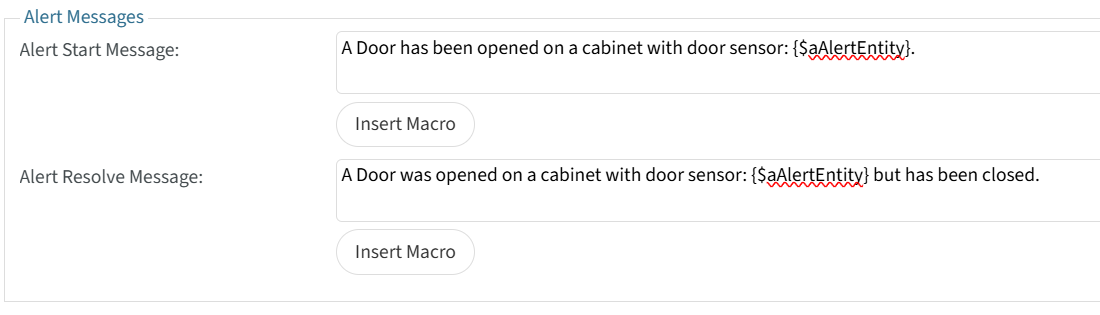
When an alert is triggered the message appearing at the bottom of the user console and the Alert Message Field on the Alert viewer will be the substituted values and the text from these two fields.
Alert Flow
Thresholds create and modify the state of alerts. Alerts are persistent objects in CenterScape that include a lifecycle with state changes. That lifecycle by default is a simple State Open and State Closed timeline where the threshold that created the alert opens (and creates) the Alert when a threshold is breached and then closes it when the threshold is cleared. The option Require User To Acknowledge Alert changes the lifecycle of an alert when it is enabled. Below is a flow chart of both the nominal alert lifecycle when not enabling the option and the changes made when Require User To Acknowledge Alert is enabled.